BR-FW:
Логин/пароль — user/P@ssw0rd, пароль администратора — P@ssw0rd
- eth0 — интерфейс в сторону RTR-BR
- eth1 — интерфейс в сторону vSW-BR
fw-br.au.team# inet show interface
Interfaces info collection is in progress...
----------
eth0: flags=4163<UP,BROADCAST,RUNNING,MULTICAST>  mtu 1500
        ether bc:24:11:d5:35:70  txqueuelen 1000  (Ethernet)
        RX packets 45  bytes 3426 (3.3 KiB)
        RX errors 0  dropped 8  overruns 0  frame 0
        TX packets 188  bytes 64296 (62.7 KiB)
        TX errors 0  dropped 0 overruns 0  carrier 0  collisions 0

          Configured by DHCP: yes
          Information requested from DHCP server: IP address, routes, DNS servers, NTP servers
          DHCP route metric: default (70)
          Class: access
          Link detected: yes
----------
eth1: flags=4163<UP,BROADCAST,RUNNING,MULTICAST>  mtu 1500
        ether bc:24:11:fb:8e:49  txqueuelen 1000  (Ethernet)
        RX packets 558  bytes 118452 (115.6 KiB)
        RX errors 0  dropped 459  overruns 0  frame 0
        TX packets 185  bytes 63270 (61.7 KiB)
        TX errors 0  dropped 0 overruns 0  carrier 0  collisions 0

          Configured by DHCP: no
          Class: trunk
          Link detected: yes
----------
lo: flags=73<UP,LOOPBACK,RUNNING>  mtu 65536
        inet 127.0.0.1  netmask 255.0.0.0
        loop  txqueuelen 1  (Local Loopback)
        RX packets 27169  bytes 3306610 (3.1 MiB)
        RX errors 0  dropped 0  overruns 0  frame 0
        TX packets 27169  bytes 3306610 (3.1 MiB)
        TX errors 0  dropped 0 overruns 0  carrier 0  collisions 0
----------
The current number of network interfaces on the system is 3. The maximum limit of interfaces is 512.
fw-br.au.team# - Задаём имя:
localhost> enable
Type the administrator password:
localhost# machine set hostname fw-br.au.team- Для организации обработки трафика из нескольких VLAN выполняем следующие действия:
- завершаем работу управляющей службы
iplir stop-
- изменяем класс интерфейса, к которому подключен коммутатор
inet ifconfig eth1 class trunk- Должно получиться следующее:
fw-br.au.team# inet ifconfig eth1 class trunk
All IP addresses and their aliases on this interface will be deleted.
Continue?[Yes,No]: Yes
Interface eth1 has lost DHCP configured information such as default gateway,
DNS and NTP servers.  This may affect network connectivity and local services
like DNS and NTP.  Please check their status manually.
eth1 set to trunk class.
fw-br.au.team# - Задаём номера виртуальных интерфейсов, которые будут соответствовать виртуальным сетям за коммутатором, в соответствии с L2
inet ifconfig eth1 vlan add 10
inet ifconfig eth1 vlan add 20- Задаём IP-адреса виртуальным интерфейсам в соответствии с L3
inet ifconfig eth1.10 address 10.2.1.14 netmask 255.255.255.240
inet ifconfig eth1.20 address 10.2.2.1 netmask 255.255.255.128- Открываем для редактирования конфигурационный файл
iplir.conf:
iplir config-
- в секции
[adapter]с описанием интерфейса, к которому подключен коммутатор, присвойте параметруallowtrafficзначениеoff:
- в секции
[adapter]
name= eth1
allowtraffic= off
type= internal
-
- добавляем секции
[adapter], описывающие созданные виртуальные интерфейсы:
- добавляем секции
[adapter]
name= eth1.10
allowtraffic= on
type= internal

[adapter]
name= eth1.20
allowtraffic= on
type= internal- Включите физический интерфейс, к которому подключен коммутатор
- при этом автоматически будут включены созданные виртуальные интерфейсы
inet ifconfig eth1 up- Запустите управляющую службу
iplir start- Проверить:
fw-br.au.team# inet show vlan
VLAN intefaces
Id      | Name          | IP            | Parent| Comment
10      | eth1.10       | 10.2.1.14     | eth1  |
20      | eth1.20       | 10.2.2.1      | eth1  |
fw-br.au.team# - Назначаем IP на интерфейс в сторону RTR-BR:
inet ifconfig eth0 address 10.2.0.2 netmask 255.255.255.252- Проверить:
fw-br.au.team# inet show interface eth0
----------
eth0: flags=4163<UP,BROADCAST,RUNNING,MULTICAST>  mtu 1500
        inet 10.2.0.2  netmask 255.255.255.252  broadcast 10.2.0.3
        ether bc:24:11:d5:35:70  txqueuelen 1000  (Ethernet)
        RX packets 86  bytes 6624 (6.4 KiB)
        RX errors 0  dropped 8  overruns 0  frame 0
        TX packets 230  bytes 78456 (76.6 KiB)
        TX errors 0  dropped 0 overruns 0  carrier 0  collisions 0

          Configured by DHCP: no
          Class: access

          Link detected: yes

fw-br.au.team# inet ping 10.2.0.1
Pinging 10.2.0.1, press Ctrl+C to cancel.
PING 10.2.0.1 (10.2.0.1) 56(84) bytes of data.
64 bytes from 10.2.0.1: icmp_seq=1 ttl=64 time=17.7 ms
64 bytes from 10.2.0.1: icmp_seq=2 ttl=64 time=7.65 ms
64 bytes from 10.2.0.1: icmp_seq=3 ttl=64 time=7.78 ms
^C
--- 10.2.0.1 ping statistics ---
3 packets transmitted, 3 received, 0% packet loss, time 2002ms
rtt min/avg/max/mdev = 7.659/11.066/17.752/4.728 ms
fw-br.au.team# - Настраиваем OSPF:
inet ospf mode oninet ospf network add 10.2.0.0 netmask 255.255.255.252 area 1 //Сеть в сторону FWinet ospf network add 10.2.1.0 netmask 255.255.255.240 area 1 //Сеть VLAN 10
inet ospf network add 10.2.2.0 netmask 255.255.255.128 area 1 //Сеть VLAN 20- Добавляем правила в firewall. Так как по заданию нет иных требований, разрешаем всё
firewall forward add 1 src @any dst @any pass
firewall local add 1 src @any dst @any pass
firewall vpn add 1 src @any dst @any pass- Проверить:
fw-br.au.team# inet show ospf neighbour

    Neighbor ID Pri State           Dead Time Address         Interface            RXmtL RqstL DBsmL
192.168.255.2     1 Full/DR           37.725s 10.2.0.1        eth0:10.2.0.2            0     0     0
fw-br.au.team# inet show routing
Codes: K - kernel route, C - connected, S - static, R - RIP,
       O - OSPF, I - IS-IS, B - BGP, A - Babel, D - DHCP/PPP,
       > - selected route, * - FIB route


Routing table MAIN (254):
O>* 0.0.0.0/0 [110/10] via 10.2.0.1, eth0, 00:00:42
O   10.2.0.0/30 [110/10] is directly connected, eth0, 00:01:53
C>* 10.2.0.0/30 is directly connected, eth0
O   10.2.1.0/28 [110/10] is directly connected, eth1.10, 00:01:39
C>* 10.2.1.0/28 is directly connected, eth1.10
O   10.2.2.0/25 [110/10] is directly connected, eth1.20, 00:01:39
C>* 10.2.2.0/25 is directly connected, eth1.20
C>* 127.0.0.0/8 is directly connected, lo
fw-br.au.team# inet ping 77.88.8.8
Pinging 77.88.8.8, press Ctrl+C to cancel.
PING 77.88.8.8 (77.88.8.8) 56(84) bytes of data.
64 bytes from 77.88.8.8: icmp_seq=1 ttl=54 time=87.1 ms
64 bytes from 77.88.8.8: icmp_seq=2 ttl=54 time=86.3 ms
64 bytes from 77.88.8.8: icmp_seq=3 ttl=54 time=84.6 ms
^C
--- 77.88.8.8 ping statistics ---
3 packets transmitted, 3 received, 0% packet loss, time 2003ms
rtt min/avg/max/mdev = 84.602/86.031/87.146/1.114 ms
fw-br.au.team# - Настройка DHCP-сервера:
inet dhcp server add interface eth1.20
inet dhcp server add range 10.2.2.2 10.2.2.126 interface eth1.20
inet dhcp server add router 10.2.2.1 interface eth1.20
inet dhcp server add dns 10.1.1.10 interface eth1.20
inet dhcp server add domain au.team interface eth1.20
inet dhcp server start
inet dhcp server mode on
- Проверить:
fw-br.au.team# inet show dhcp server
DHCP server autostart is on
DHCP server is started
DHCP server interfaces eth1.20
DHCP server configuration:
default-lease-time = 864000
max-lease-time = 864000
subnet 10.2.2.0 netmask 255.255.255.128
  option subnet-mask = 255.255.255.128
  option broadcast-address = 10.2.2.127
  interface = eth1.20
  range = 10.2.2.2 10.2.2.126
  option routers = 10.2.2.1
  option domain-name-servers = 10.1.1.10
  option domain-name = au.team
fw-br.au.team#
CLI-BR:
- Выполняем коммутацию в соответствие с L2 (указываем тег VLAN):
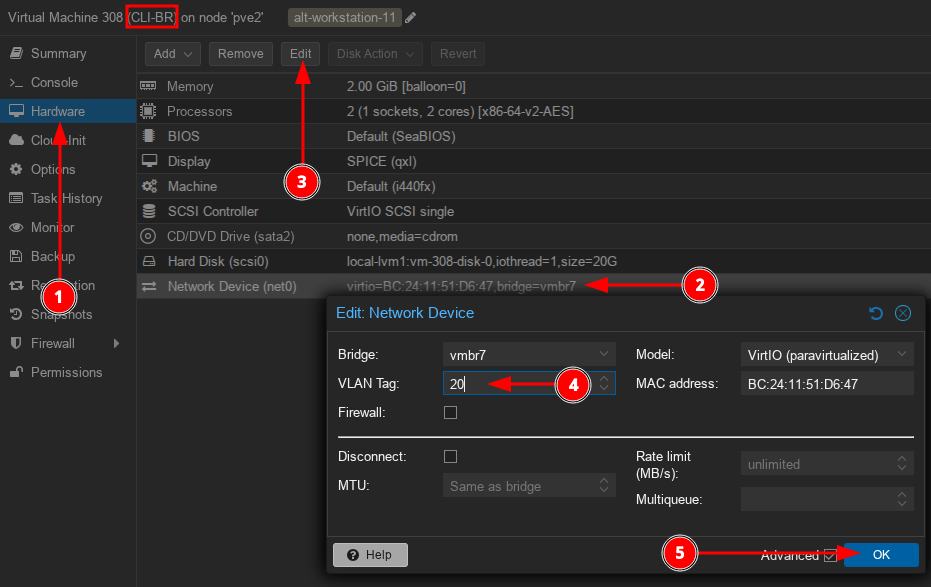
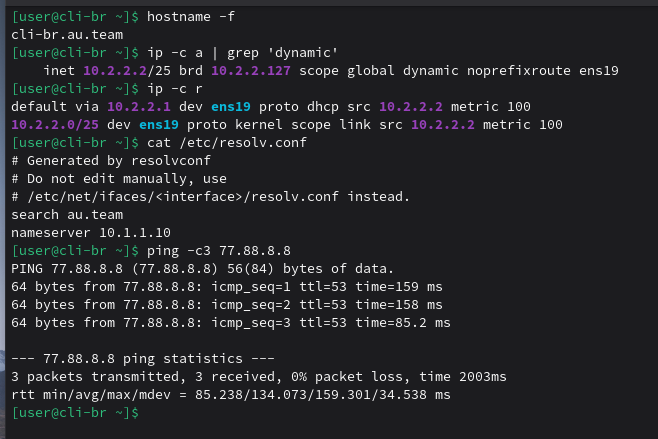
- Проверяем получение сетевых параметров. Задаём имя на устройство
su -hostnamectl set-hostname cli-br.au.team; exec bash- Результат: